Support
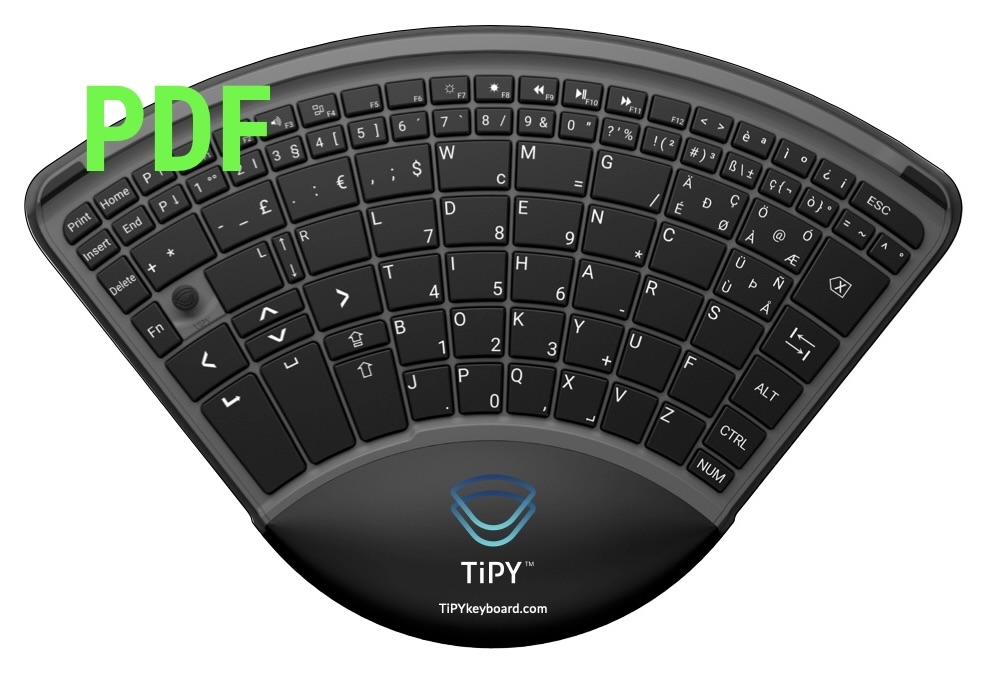
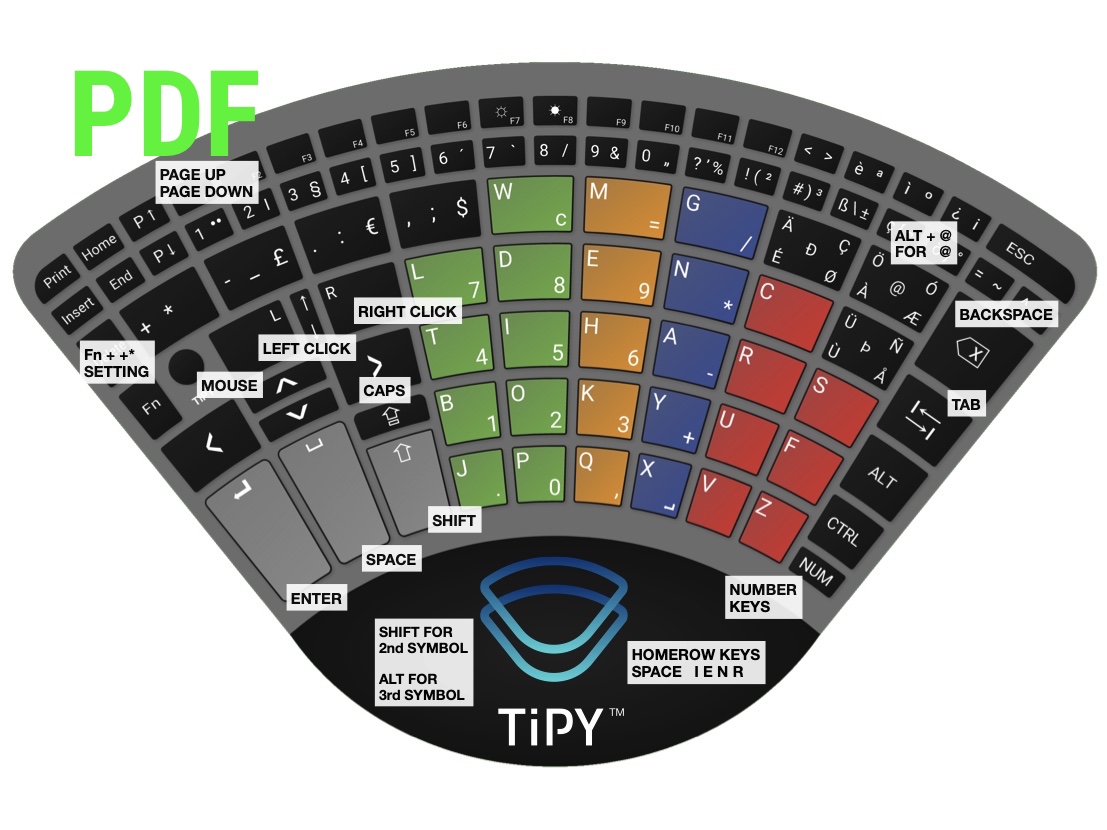
It is essential to ensure that the language setting of your computer keyboard language aligns with the TiPY keyboard for the proper execution of all letters and characters. TiPY does not rely on country-specific languages but instead utilizes the language setting of the operating system, encompassing the majority of characters and letters.
This means there is one setting for all English language variants or a setting for all German language variants.
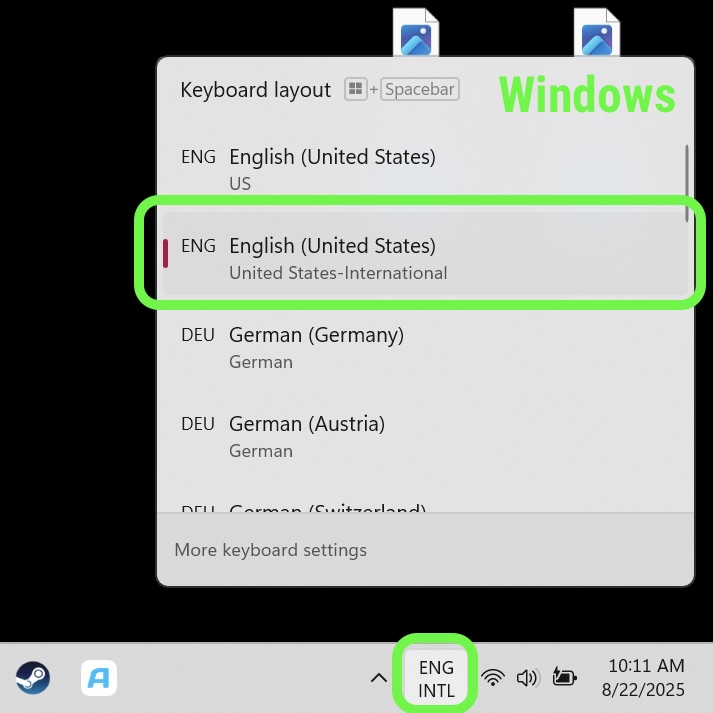
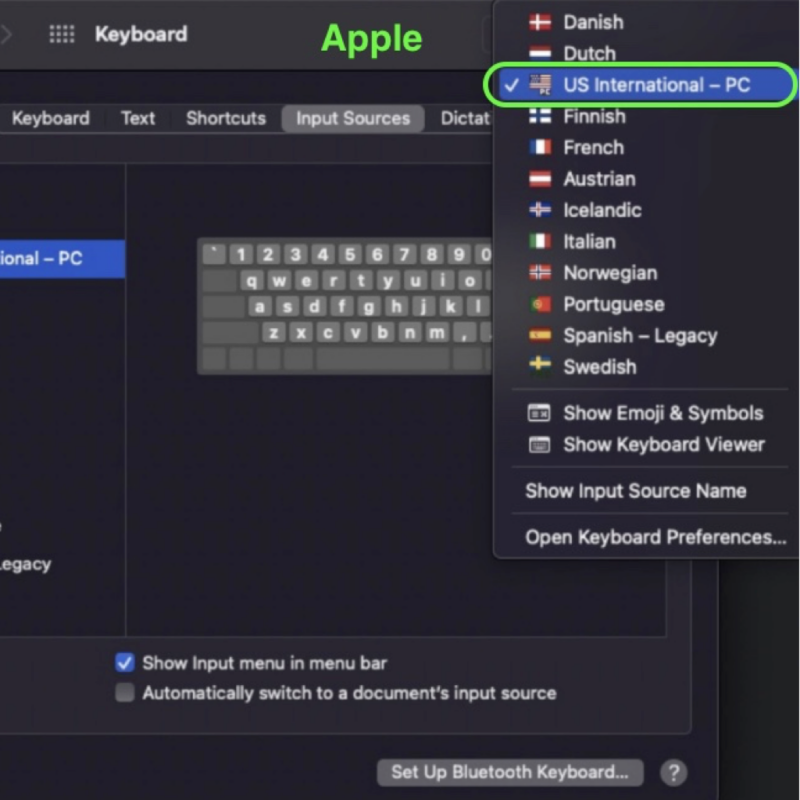
Please check and, if necessary, adjust the keyboard language on your operating system to one of the language options in the attached list. Ensure that your TiPY is also set to the same language. You can find a visual guide attached for reference.
Windows:
- DE – German (Germany/Austria)
- FR – French (France)
- EN – English (US International)
- IT – Italian (Italy)
- ES – Spanish (Spain)
- DA – Danish (Danish)
- NO – Norwegian (Bokmål)
- SV – Swedish (Sweden)
- FI – Finnish (Finnish)
- NL – Dutch (Netherlands) United States-International
- PT – Portuguese (Portugal)
- IS – Icelandic (Icelandic)
MacOS:
- DE – German (Germany/Austria)
- FR – French (France)
- EN – English (US International – PC)
- IT – Italian (Italy)
- ES – Spanish (Legacy)
- DA – Danish (Danish)
- NO – Norwegian (Bokmål)
- SV – Swedish (Legacy)
- FI – Finnish (Finnish)
- NL – Dutch (Netherlands)
- PT – Portuguese (Portugal)
- IS – Icelandic (Icelandic)
Here is an example of the English language used by all English-speaking countries.
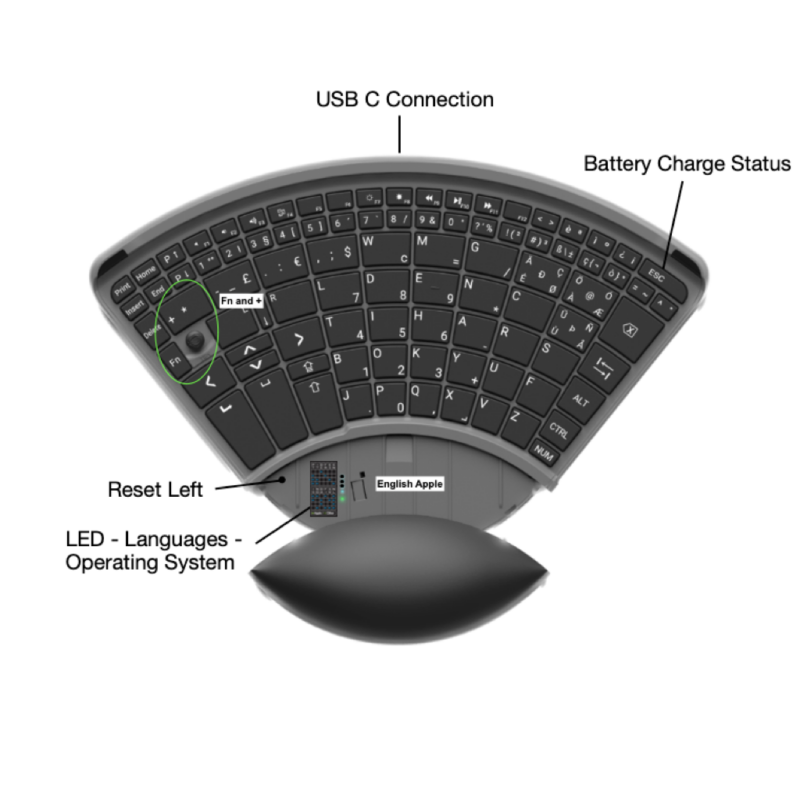
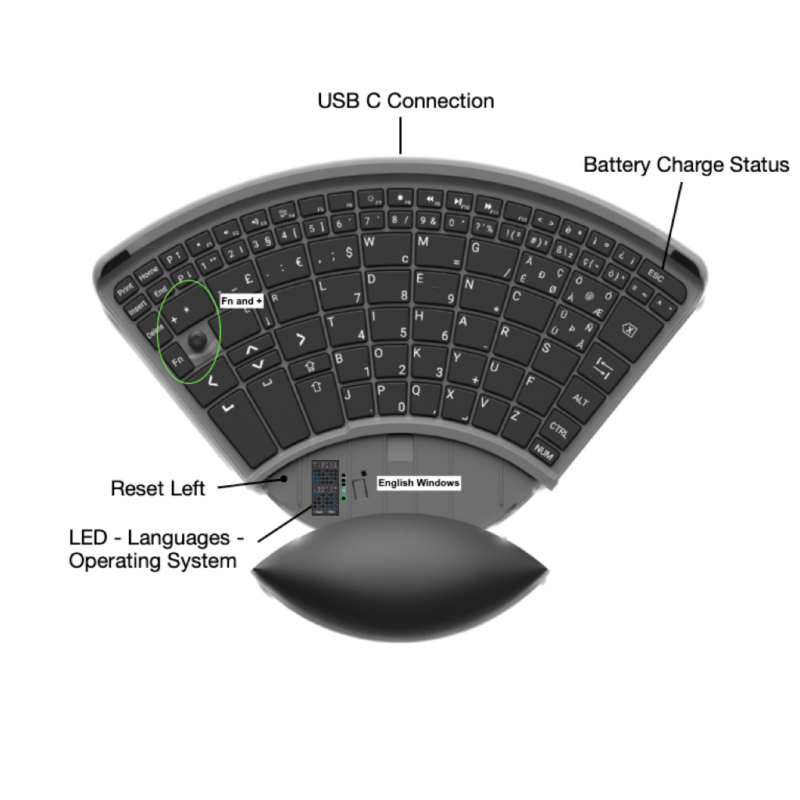
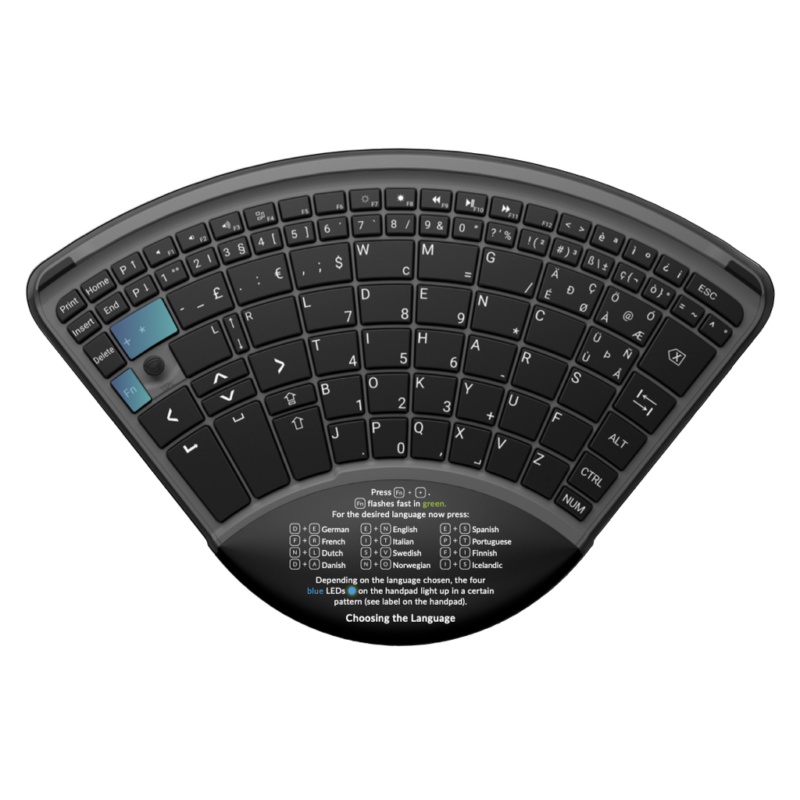
To check your TiPY’s language setting, observe the LEDs below the hand pad. Remove the hand pad, then press the Fn and Plus buttons simultaneously. The LEDs will illuminate for 5 seconds, indicating the active language and operating system based on the legend provided.
During this timeframe, you can also make adjustments to the settings.
🌐 Languages & Special Characters
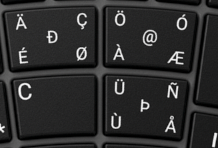
Special keys with multiple language characters depend on the selected keyboard language.
Only the characters of the active language are available.
Example: In German, only Ä, Ö, Ü are active.
📧 Typing the @ Symbol
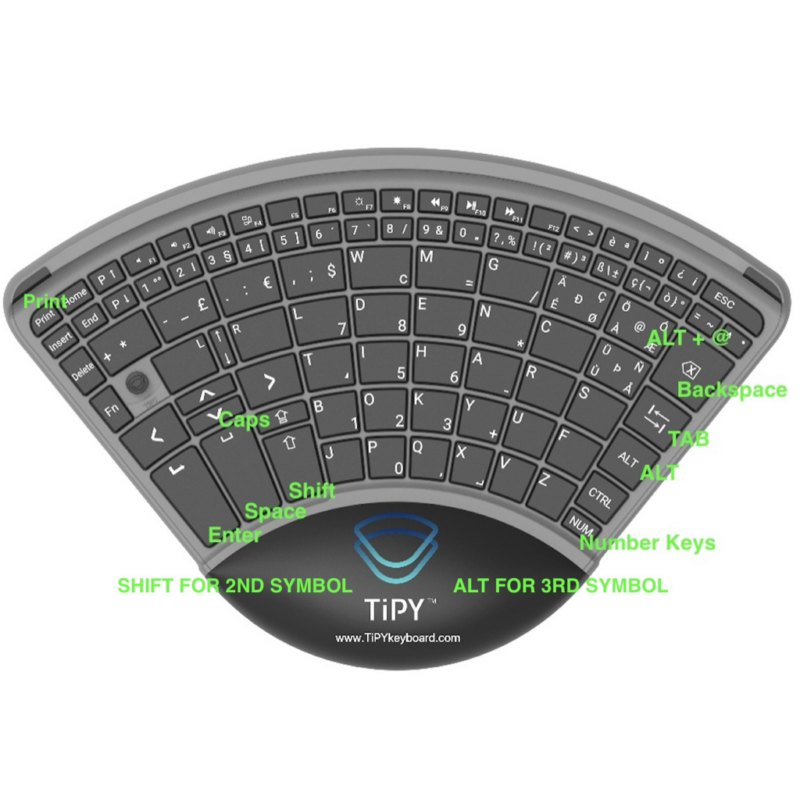
Standard: ALT + @
Note for Windows users:
In some older programs, the @ symbol may not work as expected.
Alternative: Ctrl + Alt + [key] (depending on keyboard layout)
Examples:
• German (DE): Ctrl + Alt + @ or Ctrl + Alt + Q
• English (US/INT): Shift + 2
• French (FR): Ctrl + Alt + 0
• Spanish (ES): Ctrl + Alt + 2
• Italian (IT): Ctrl + Alt + ò
• Other layouts: usually Ctrl + Alt + 2
⌨ Additional Key Usage
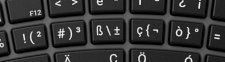
Second characters: Shift
Third characters: ALT
Alt Gr = Ctrl + Alt
⚙ General Functions
Copy & Paste and similar shortcuts work as usual using Shift / Ctrl / Alt.
TiPY uses Ctrl for many system functions.
♿ Accessibility
Apple (macOS): One-finger operation – press modifier keys one after another.
Windows: Sticky Keys – press key combinations step by step (e.g. Ctrl → C).
🚀 TiPY Special Functions
Volume control: Fn + Fx
macOS Screenshot: Fn + 3 / Fn + 4 / Fn + 5
Windows Task Manager / Login screen: Fn + Delete
Scroll Lock: Fn + End
Pause: Fn + Home
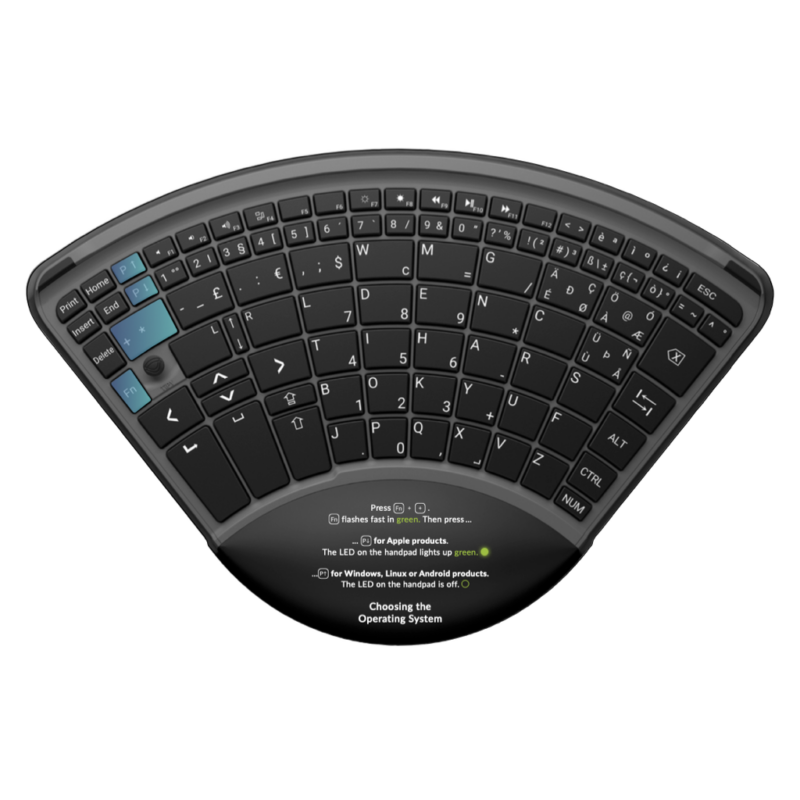
Language / system mode: Fn + + (hold for 5 seconds)
🖱 Disable Mouse Function
Press Fn + + (activate mode), then press M
📸 Enable Windows Screenshot (Print Key)
Go to Settings → “Use the Print Screen key to open screen snipping” → activate.
After that, screenshots work using the Print key.
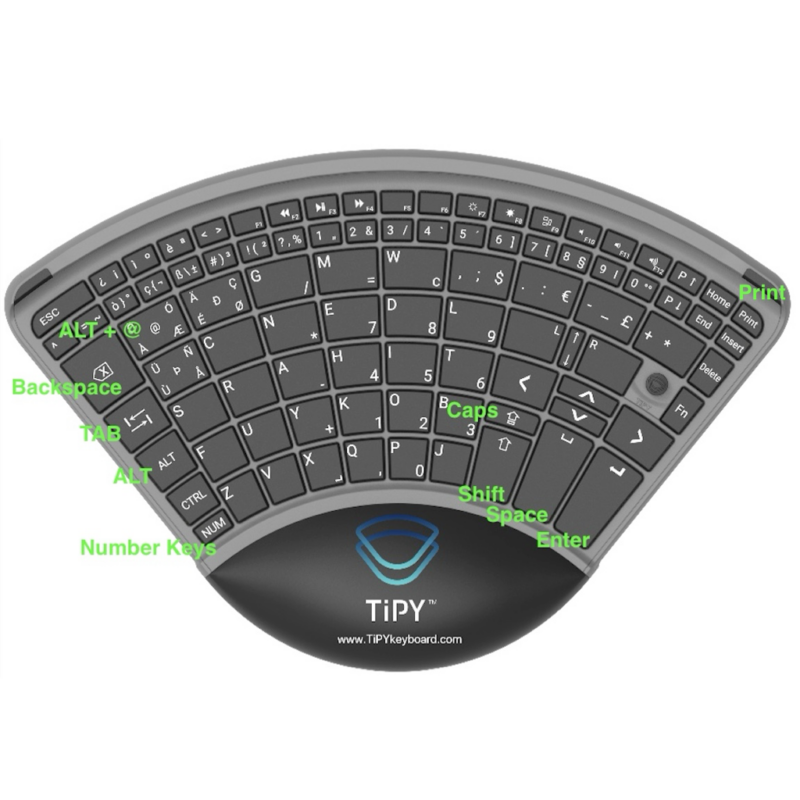
Y and Z and other character mix-ups is an easy fix because it just means that your TiPY and your Computer are not using the same language setting.
Please go to the first FAQ information “Your Computer Keyboard Language” and follow the steps for the language on your computer and the language on your TiPY.
If these settings are in agreement, then all characters will be displayed correctly.
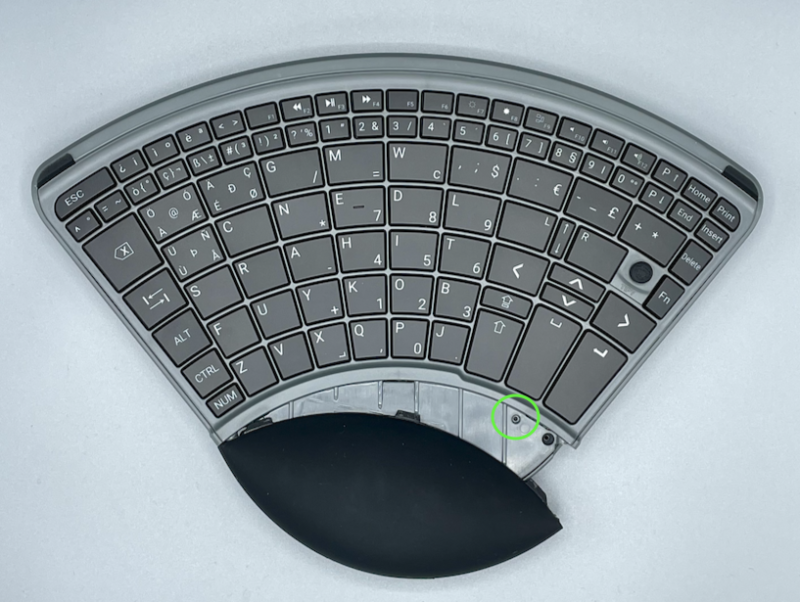
TiPY has a reset opening located underneath the hand pad on the left side.
Pressing the reset briefly disconnects the device from both external power and the internal battery. All Bluetooth connections will be deleted in the process.
A gentle press with a pointed object is sufficient to trigger the reset.
After the reset, TiPY must be reconnected to a computer or another power source and set up again according to the instructions in the user manual.
The TiPY Keyboard does not have a dedicated Windows key, but this can be simulated using another key. With SharpKeys, the Windows key can be permanently remapped to another key, as the change is stored directly in the Windows registry. It is recommended to use the Caps Lock key as a replacement. The remapping remains active until changed again in the program and does not require a background application to run.
🔗 Download SharpKeys: GitHub – SharpKeys
Alternatively, Microsoft PowerToys can also be used. This tool allows flexible key remapping but requires PowerToys to be running in the background. However, it offers more customization options and additional features.
🔗 Download Microsoft PowerToys: GitHub – PowerToys

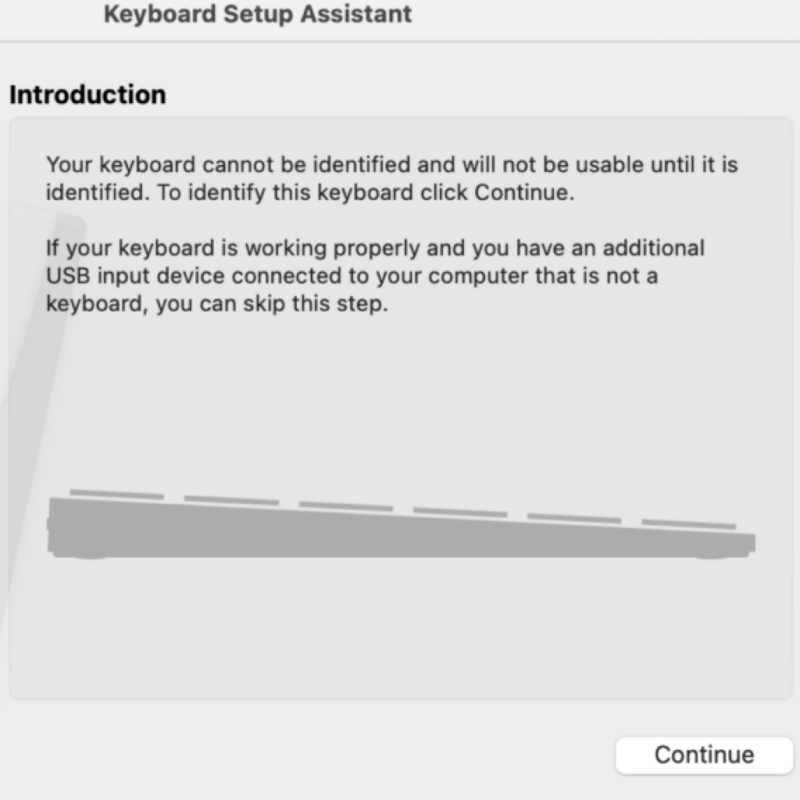
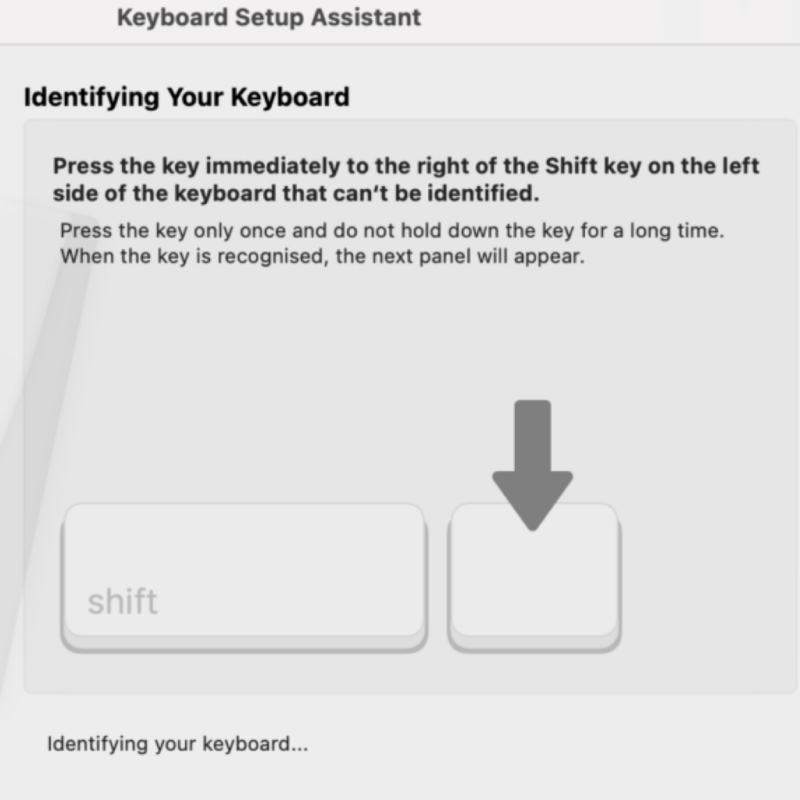
Information, operating instructions and software can be found here directly at https://www.quha.com.